Help / Start here
Set up First Light (free), start to finish
This guide takes First Light from download to your first stream in about 15 minutes. You need OBS Studio (free) or Streamlabs Desktop, and your First Light download page (the page that opened when you downloaded it).
1. Personalise your links
On your download page press Personalise your links. That opens the setup page with First Light selected. Type your channel name, pick two colours (or keep First Light’s), add your socials and a schedule line, choose a language, and press Make my links. The settings live in the links, so nothing is stored and you can change them any time.
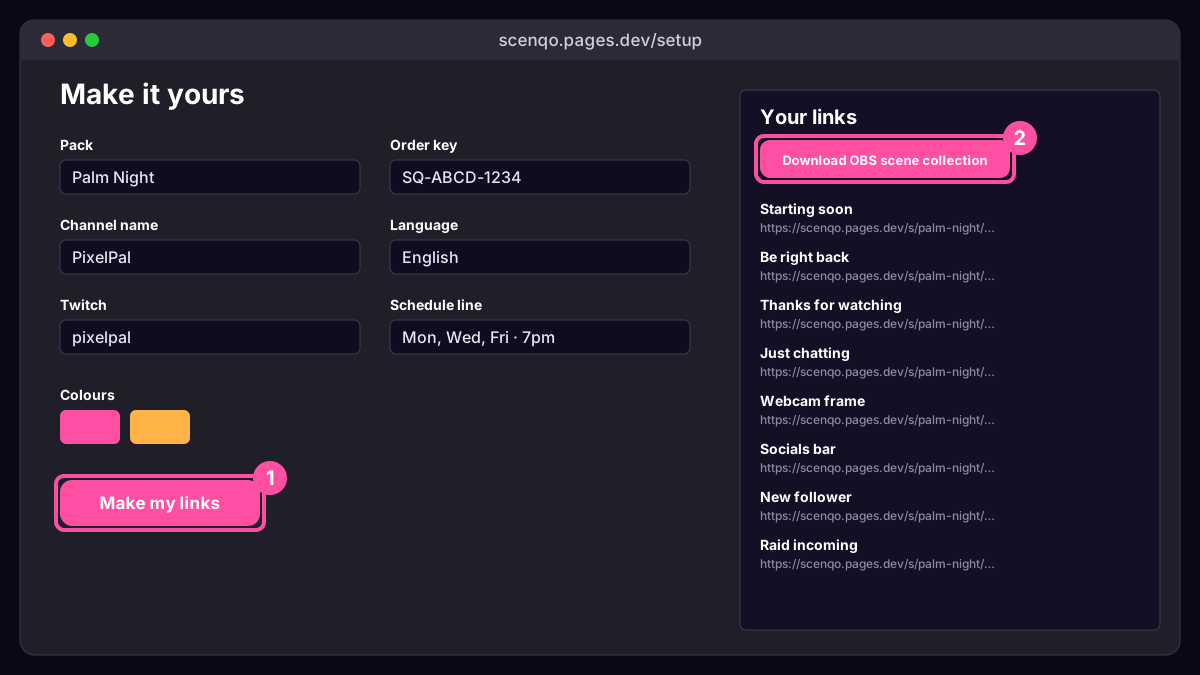
2. The quick way: import the scene collection
- On the setup page press Download OBS scene collection (the zip has one too, in the obs folder).
- In OBS open the Scene Collection menu and choose Import.
- Click the … button, pick the file, tick it and press Import.
- Open Scene Collection again and choose Scenqo First Light. You now have Starting soon, Be right back, Thanks for watching, Just chatting and a Live scene with the webcam frame, socials bar and all 6 alerts.
- In the Live scene, add your camera (Video Capture Device) and game (Game Capture) below the Scenqo sources, then move the webcam frame over your camera.
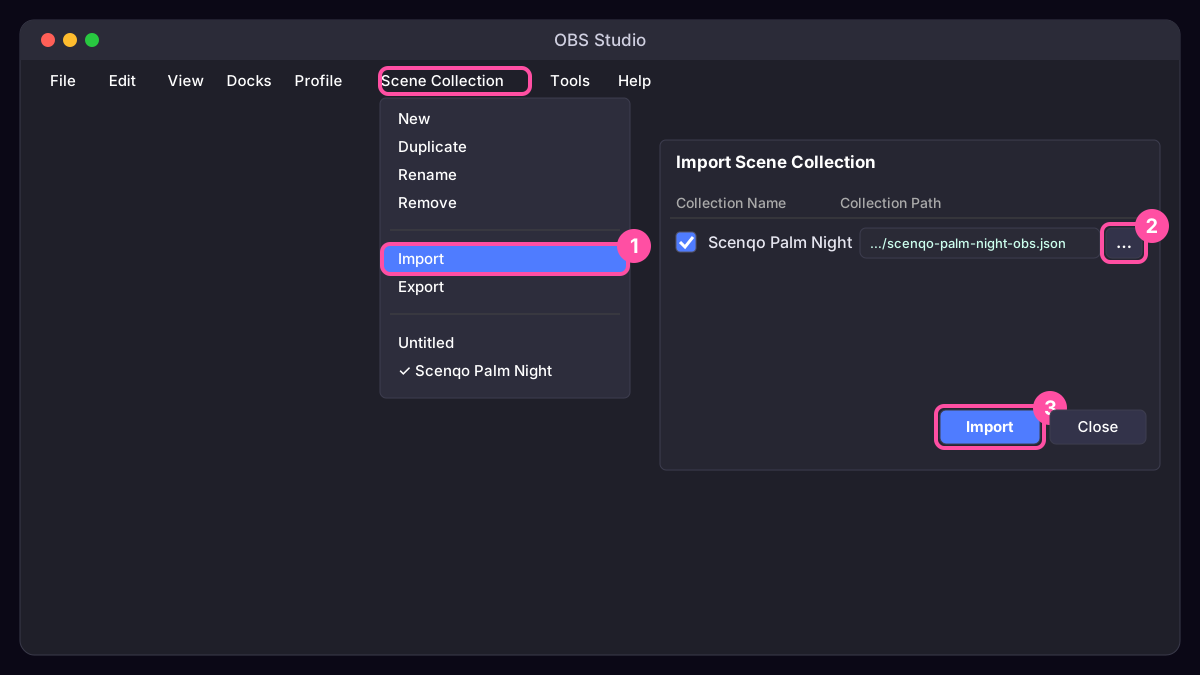
3. Or add scenes one by one
In the Sources dock press +, choose Browser, name it, paste the scene’s link into URL and set the size from this table.
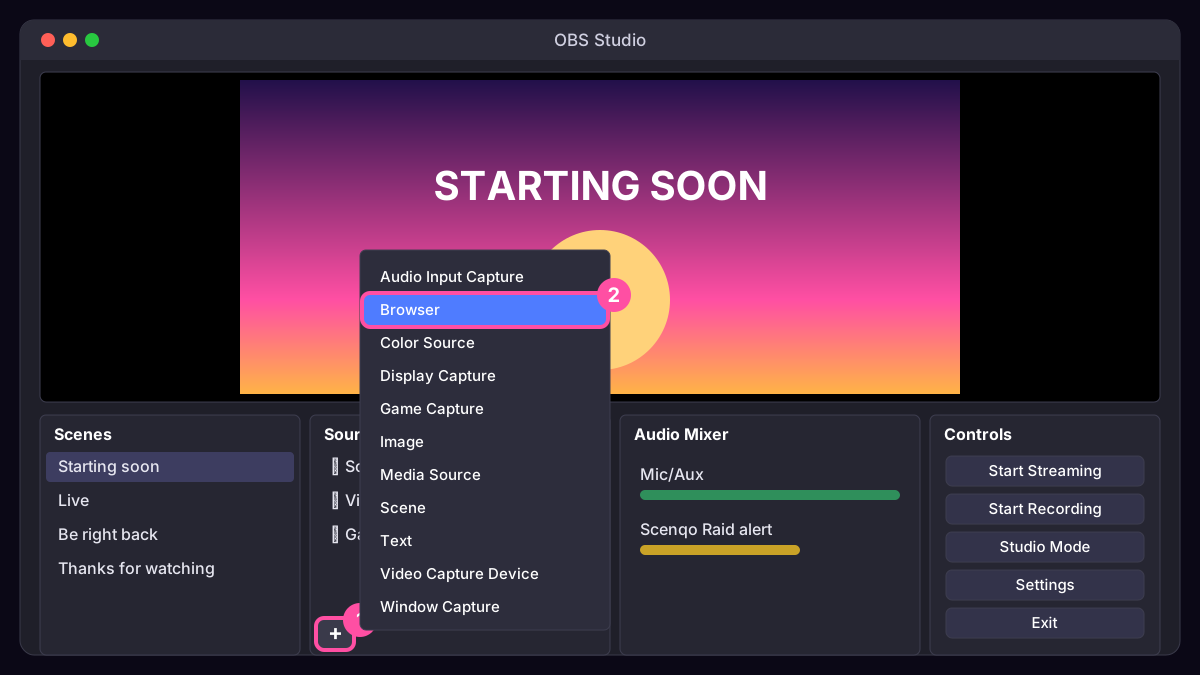
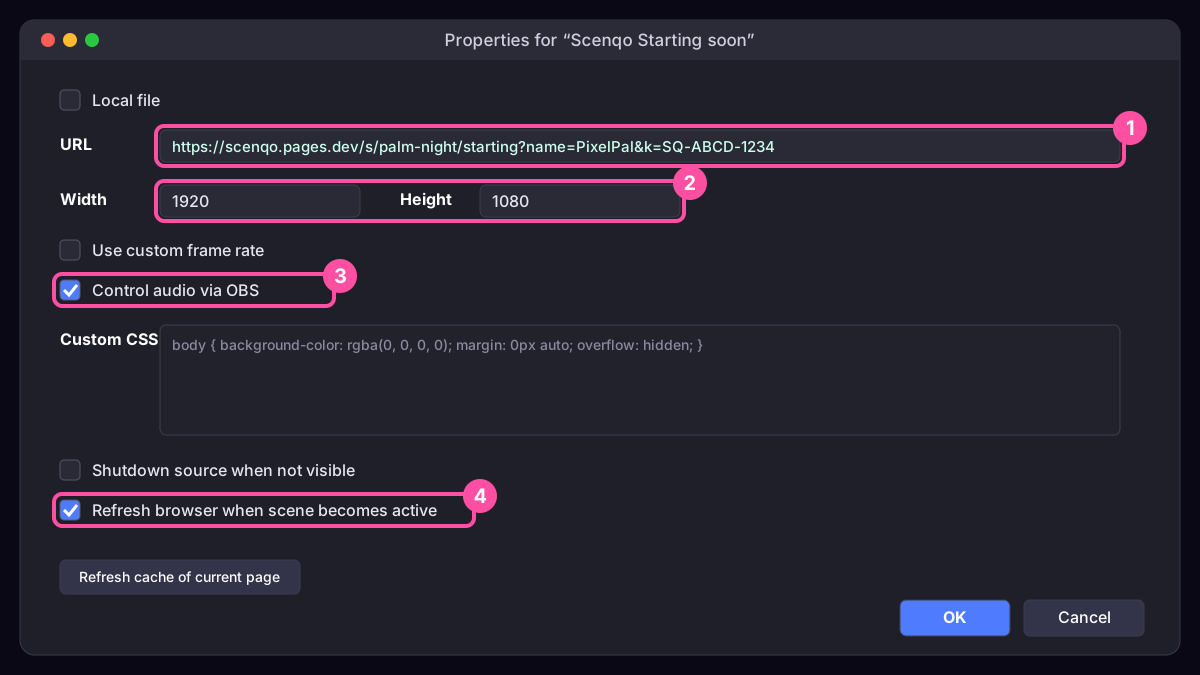
| Scene | Browser source size | Tick |
|---|---|---|
| Starting Soon, Be Right Back, Ending, Just Chatting | 1920 x 1080 | Refresh browser when scene becomes active (restarts the countdown) |
| Webcam frame | 1280 x 720, then resize it over your camera | - |
| Socials bar | 1920 x 90, at the bottom of the canvas | - |
| 6 alerts | 1920 x 1080 | Control audio via OBS, and Refresh browser when scene becomes active |
| Transition | 1920 x 1080, at the top of each scene | Refresh browser when scene becomes active |
| Vertical scenes (links ending v=1) | 1080 x 1920 | As above |
4. Alerts
There are two ways, and you can use both. Alert box: upload the six WAV files from the sounds folder of the zip to StreamElements or Streamlabs so they play on real follows, subs and raids (see StreamElements or Streamlabs). Animated alert scenes: each alert link plays its animation and sound when shown. Hide it, give it a Show hotkey in Settings, Hotkeys, and press it for big moments.
5. The transition
Add the Transition link at the very top of each scene, with Refresh browser when scene becomes active ticked. Each time you switch to that scene, the neon wipe plays over the cut. Details: setting up the transition.
6. Panels
On your download page press Make panel PNGs, download the eight panels and upload them on your Twitch About page. See adding panels.
7. Before you go live
- Switch to each scene once: the countdown should start at 5:00 (add &t=10 to the Starting Soon link for 10 minutes).
- Show an alert and watch the Audio Mixer: it should peak well below your microphone.
- First Light has no watermark and no key.
- Record 30 seconds (Start Recording) and watch it back before your first stream.
Stuck? Something’s not working covers blank boxes, missing sound and blurry scenes, or contact us.